
Creating a New Dataset
The Dataset creation workflow allows you to isolate specific segments of spend—by time, source, or business unit—to prepare them for AI classification.
🛠️ Configuration Workflow
-
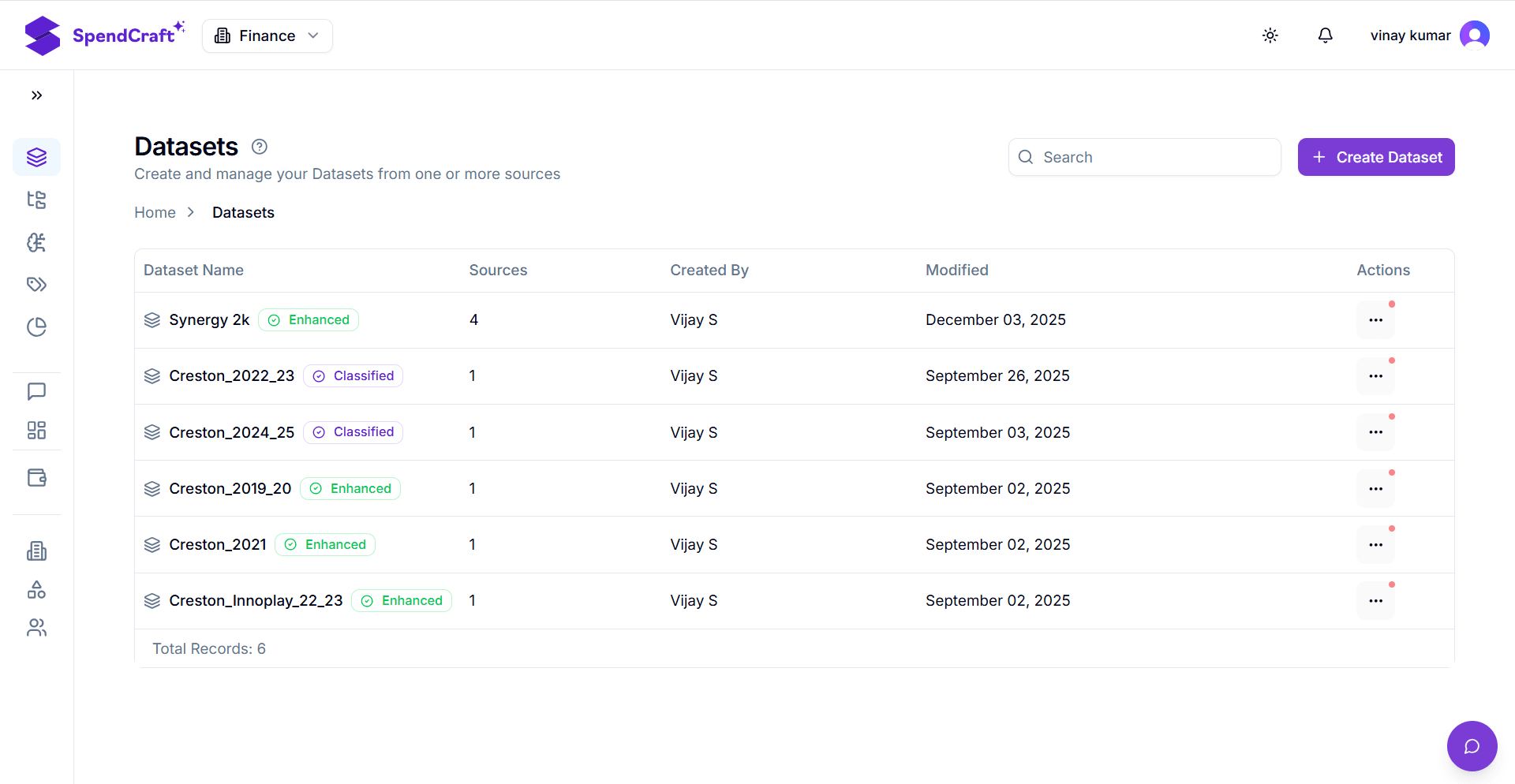
Initiate Creation: Navigate to the Datasets module in the sidebar and click the + Create Dataset button.
-
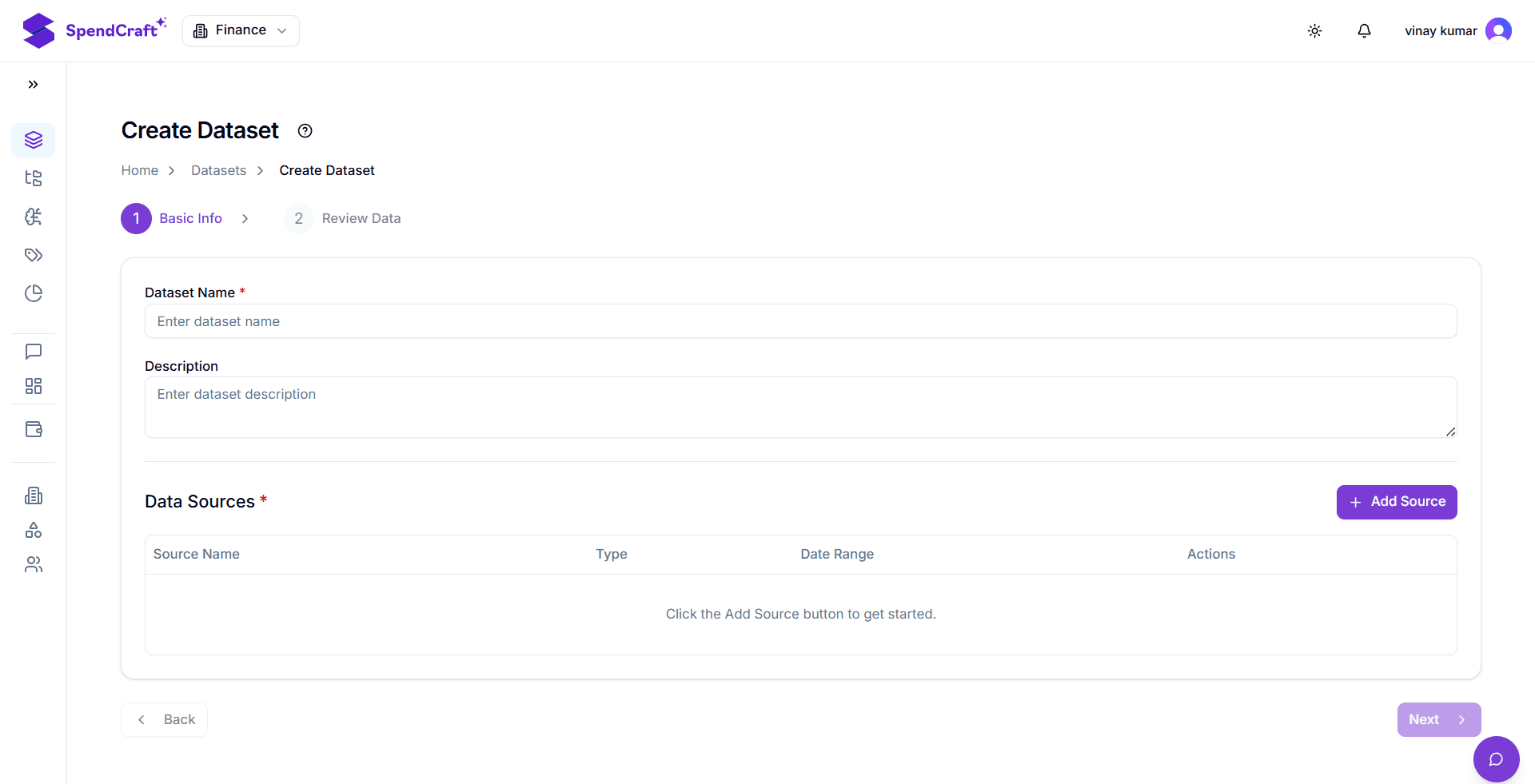
Define Basic Information: In the Basic Info tab, provide a recognizable identity for your data segment:
- Dataset Name: Enter a unique identifier (e.g.,
FY2025_Q1_Indirect). - Description: Add context regarding the scope of data included.
- Dataset Name: Enter a unique identifier (e.g.,
-
Select & Filter Data Sources: Click + Add Source to link your raw transaction data. In the popup dialog:
- Source Name: Select your configured data source (e.g.,
ERP_Export_Production). - Date Range: Set the start and end dates to filter specific transactions (e.g., Jan 2024 – Aug 2025).
- Source Name: Select your configured data source (e.g.,
-
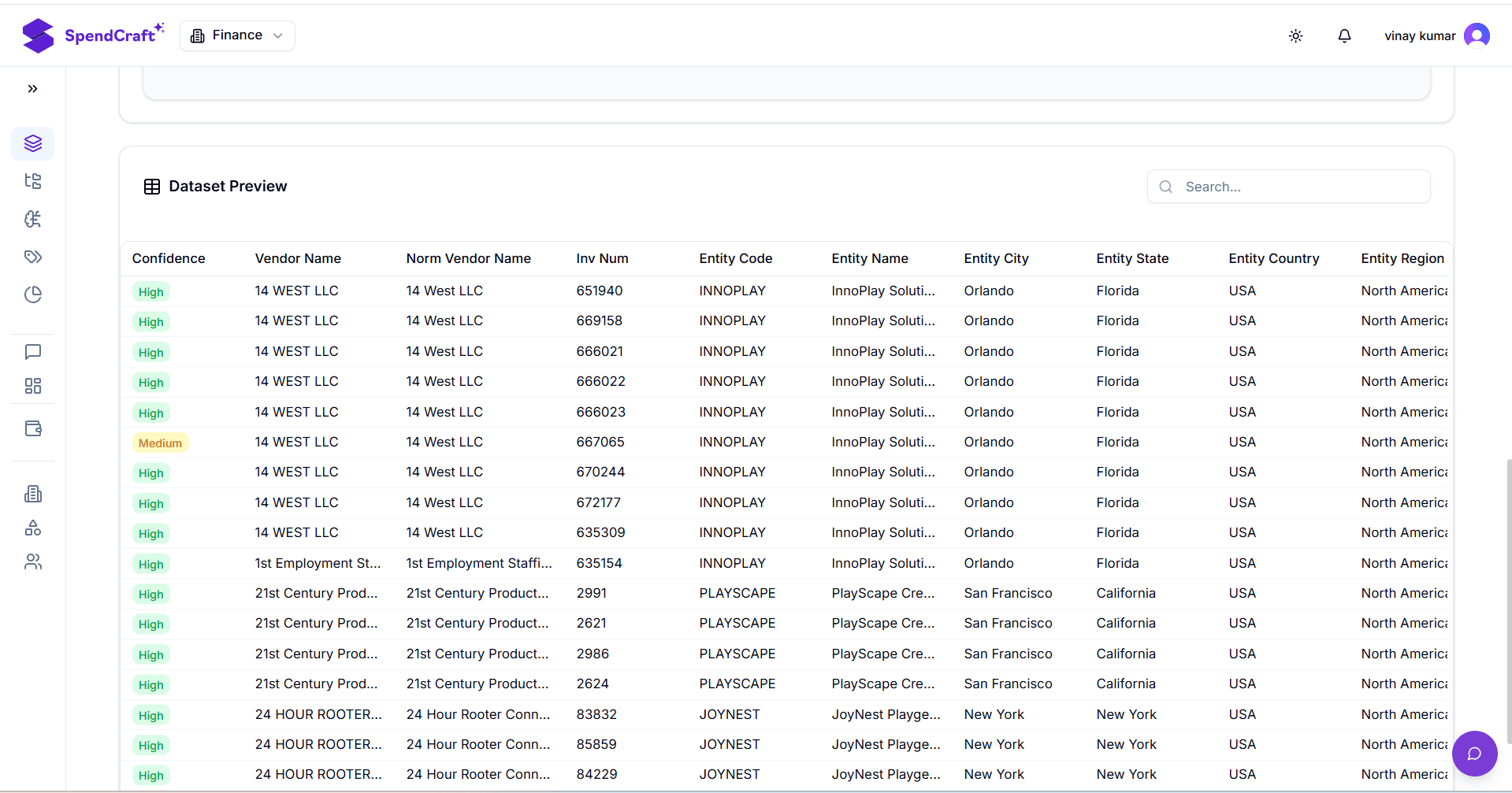
Review & Save: Navigate to the Review Data tab to inspect a preview of the filtered transaction lines. Ensure the column headers and row counts align with your expectations, then click Save Dataset.
💡 Best Practices
- Naming Conventions: Use a standard format like
[Region]_[Department]_[Year]to make searching easier for your team. - Granularity: If you plan to use different AI Agents for different regions, create separate datasets for each region rather than one large global file.
- Validation: Always check the Review Data tab to confirm that your date filters haven't excluded expected records.
Next Step: Once saved, your data is ready for the next phase. Proceed to Vendor Normalization to clean your supplier list.