
Taxonomies
Create a New Taxonomy
To build a classification structure tailored to your organization’s needs, follow the standardized workflow below.
🛠️ Step-by-Step Creation
-
Navigate to Taxonomies: Select Taxonomies from the left navigation panel to open the master list.
-
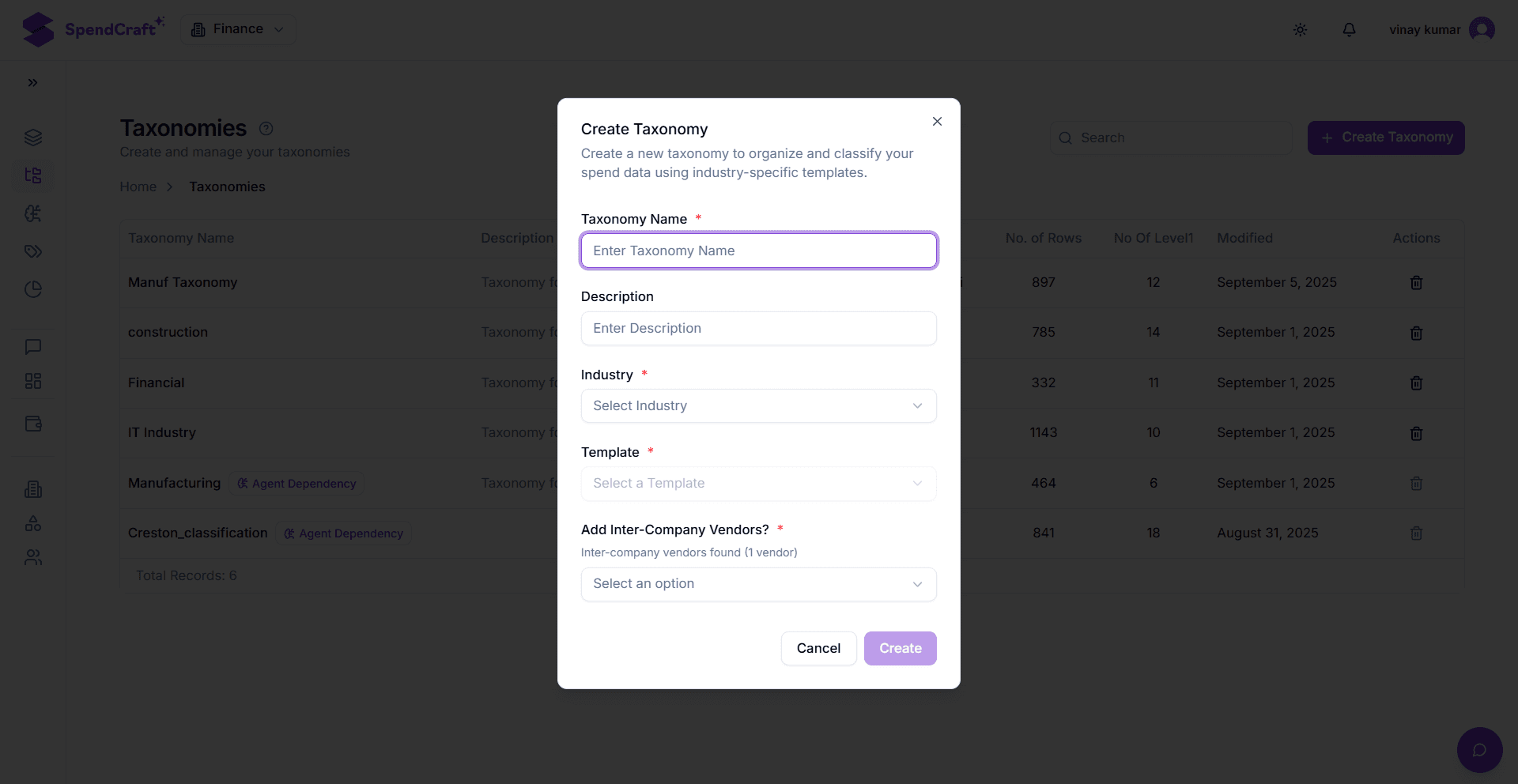
Initiate Creation: Click the purple Create Taxonomy button in the top-right corner. This will launch the creation modal.
-
Define Basic Details:
- Taxonomy Name: Enter a unique identifier (e.g.,
IT_Services_v1). - Description: Provide a brief explanation of the scope (e.g., "Global IT and Cloud Services Spend").
- Taxonomy Name: Enter a unique identifier (e.g.,
-
Configure Architecture: Select the foundational logic for your classification:
- Industry: Select your primary business sector (e.g., Manufacturing).
- Template: Choose a pre-built hierarchy based on the industry selected.
- Add Inter-Company Vendors: Determine if internal transactions should be included. SpendCraft will display the count of identified internal vendors here.
-
Review & Finalize: Ensure all fields marked with an asterisk (
*) are completed, then click Create.
🖥️ Interface Overview
The image below illustrates the Create Taxonomy modal with the required configuration fields.
Tips for Success
- Naming Conventions: Use a suffix like
_v1or_Draftto manage versions as your category structure matures. - Template Choice: Always start with the most detailed template; it is faster to delete unwanted categories than to build new ones from scratch.
- Audit Trail: Once created, every change to the structure is tracked, allowing for a full audit of your classification logic.