
Taxonomies
View & Modify Taxonomy Structure
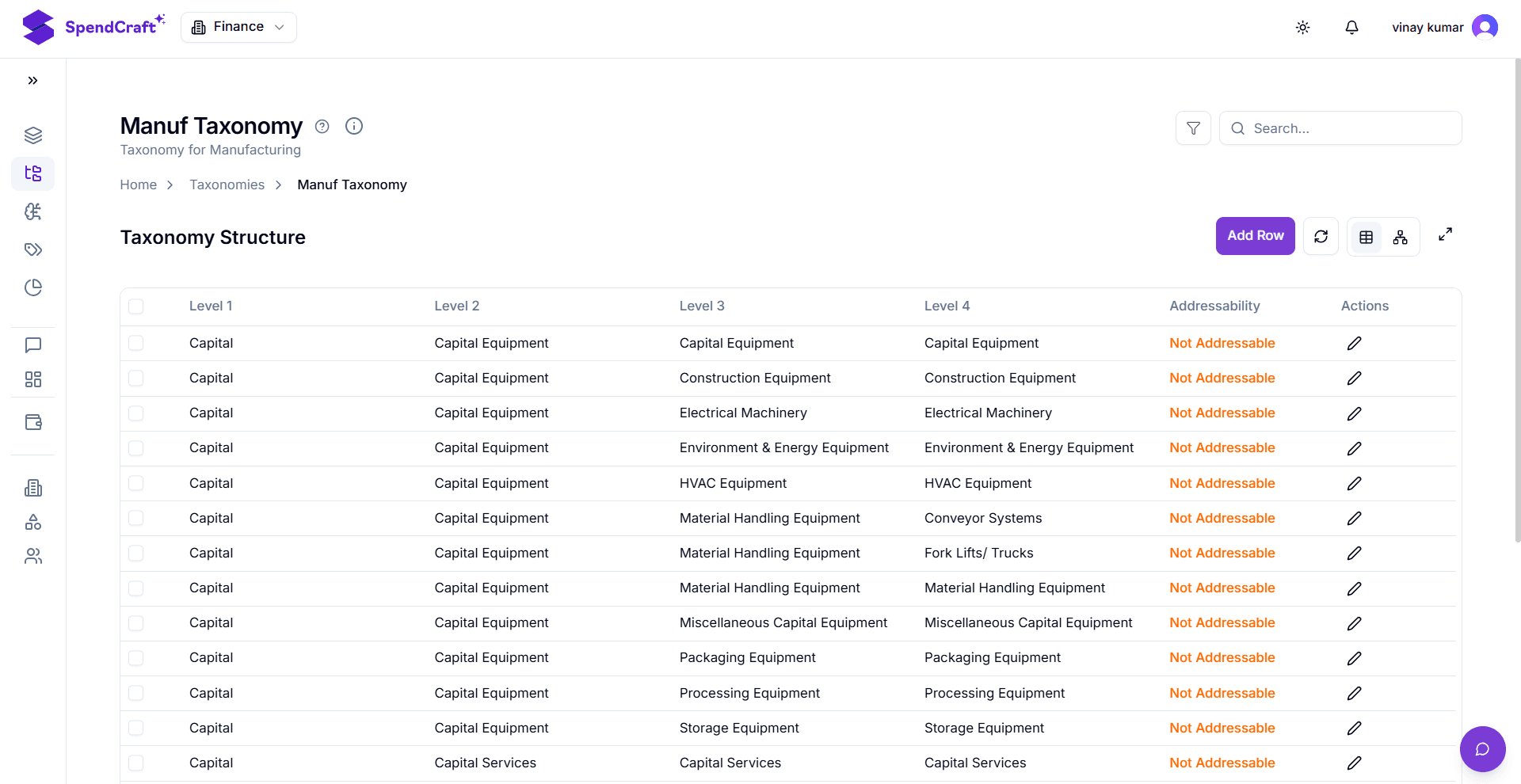
Once a taxonomy is created, you can manage its hierarchical levels and individual classification paths through the Structure View.
🛠️ Management Workflow
-
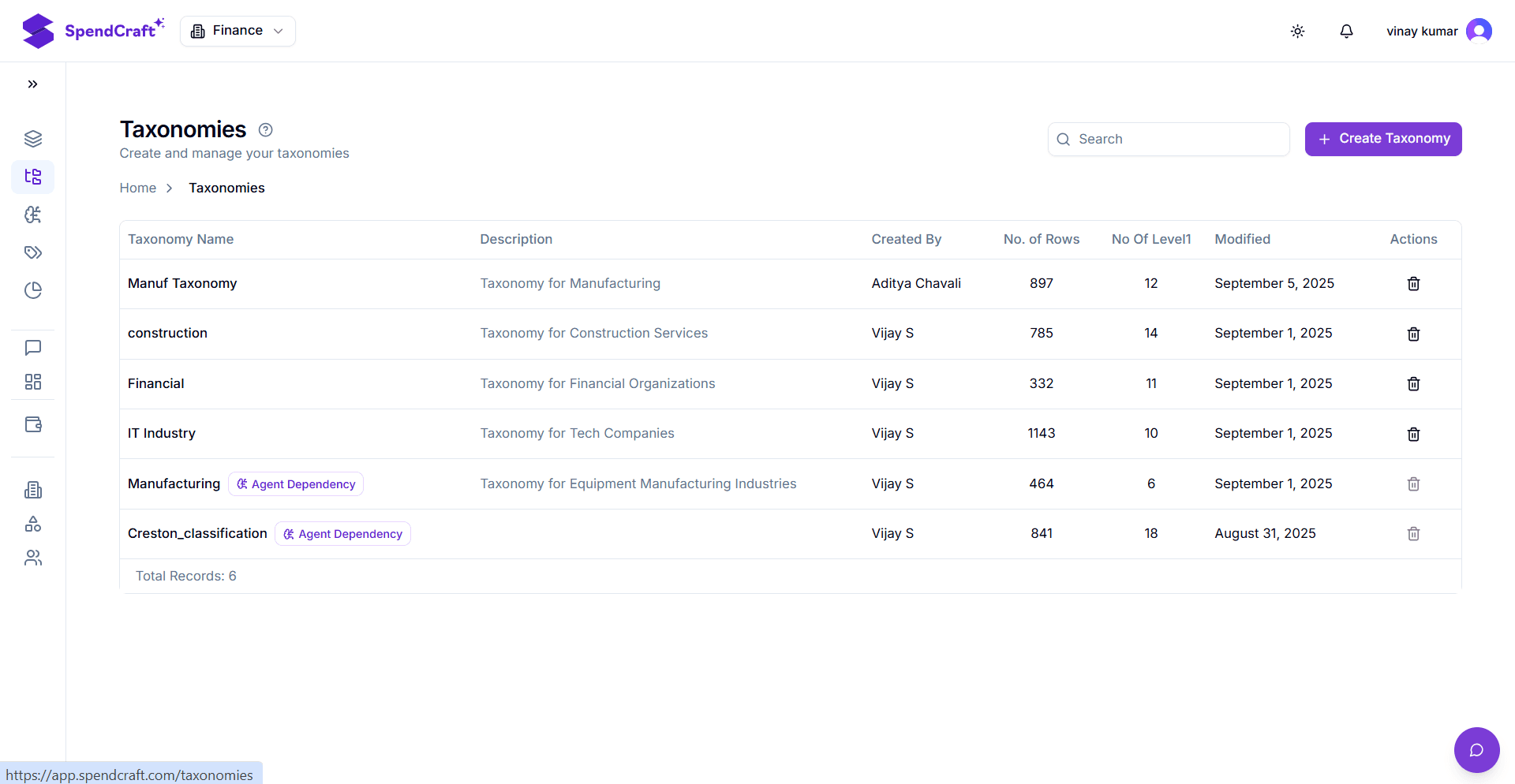
Access the Taxonomy: On the Taxonomies listing page, click on a Taxonomy Name (e.g.,
Manuf_Taxonomy_v1). This opens the interactive structure table. -
Add a New Classification Path: To expand your taxonomy with a new category or commodity:
- Click the Add Row button above the table.
- Define the values for each level (e.g., Level 1: IT, Level 2: Software, Level 3: Security).
- Save the new path to make it available for AI training.
-
Edit Existing Paths: To modify an existing category name or structure:
- Locate the specific row you wish to change.
- In the Actions column, click the Pencil (Edit) icon.
- Update the text in the relevant level columns and confirm the changes.
⚠️ Reviewing Dependencies
Before making major structural changes (such as deleting or renaming a Level 1 category), scroll to the bottom of the page to review the Dependencies section.
- Agents: Lists all AI models trained on this taxonomy. Renaming categories here may require retraining the associated Agent.
- Datasets: Shows which active datasets are currently classified using this structure. Changes will affect the reporting and analytics of these datasets.
💡 Best Practices for Editing
- Consistency: Ensure that new rows follow the same naming casing (e.g., Title Case) as the rest of the taxonomy to prevent fragmented analytics.
- Granularity: Only add Level 3 or Level 4 categories if you have a significant volume of spend or a specific strategic need to track that detail.
- Impact Analysis: Always check the Agents dependency list first. A change to a "Level 1" name is a high-impact event that alters the foundational logic of your AI models.