
Workspaces
Add Members and Set Permissions
Managing access at the Workspace level ensures that the right team members have the appropriate level of control over sensitive spend data and configuration logic.
👥 How You Add a Team Member and Set Permissions
Follow these steps to assign users and define their specific access levels for a Workspace:
1. Access Workspace Members:
- Select the desired Workspace from the main Workspaces list.
- Scroll down to the Workspace Members section located below the Workspace Details.
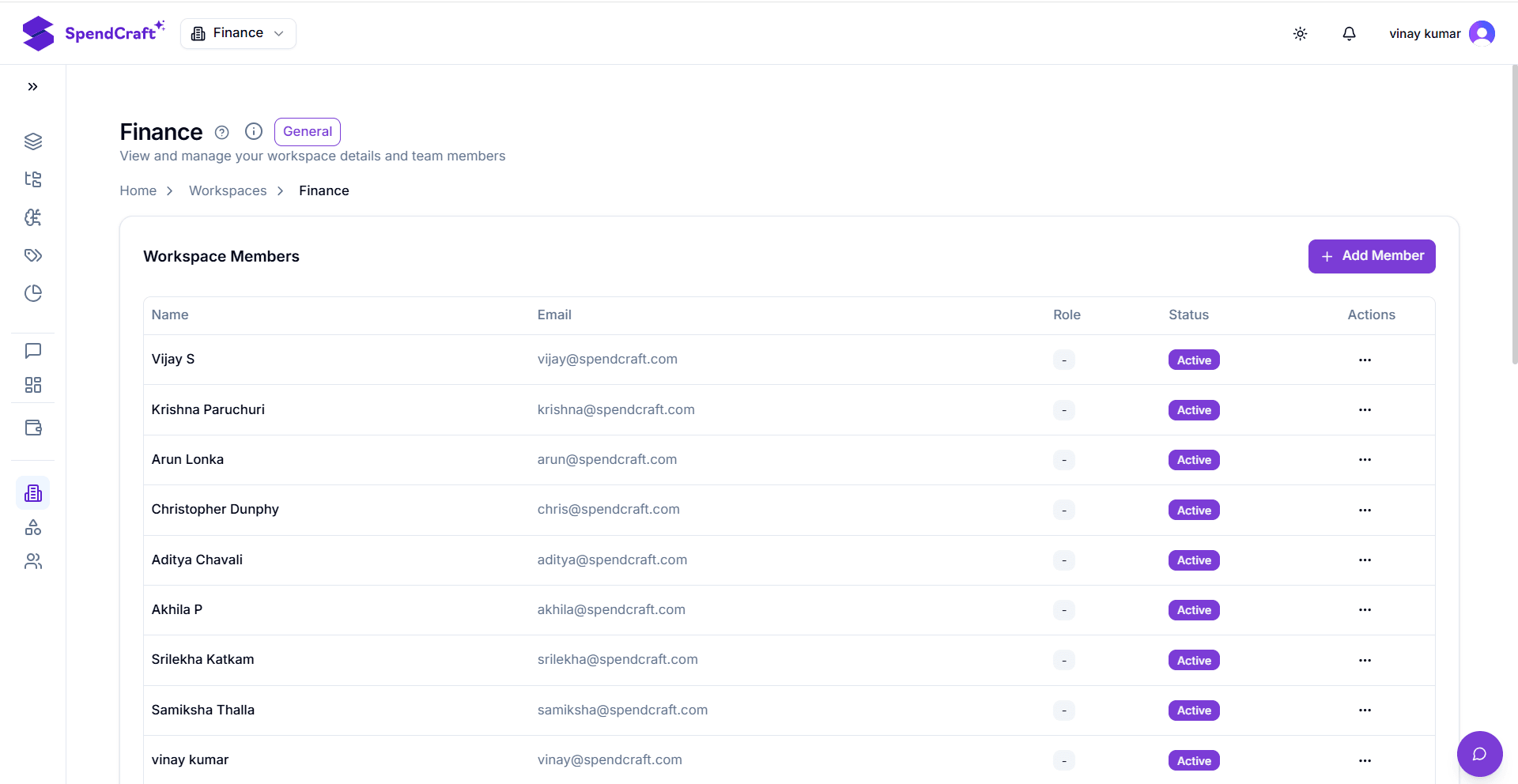
2. Add Member:
- Click the purple + Add Member button.
- The Add Team Member modal will appear on your screen.
3. Select User and Define Permissions:
- Select a User: Use the dropdown menu to choose a user from your organization's directory.
- Module-Level Access: For each system Module (Agents, Analytics, Classification, Taxonomy, etc.), set the required access using the individual toggles:
- Read: Enable this toggle to allow the user to view content and reports within that module.
- Write: Enable this toggle to allow the user to modify configurations, create new content, or run processes.
4. Finalize Addition:
- Click the Add button to finalize the user's role and activate their permissions within the Workspace.
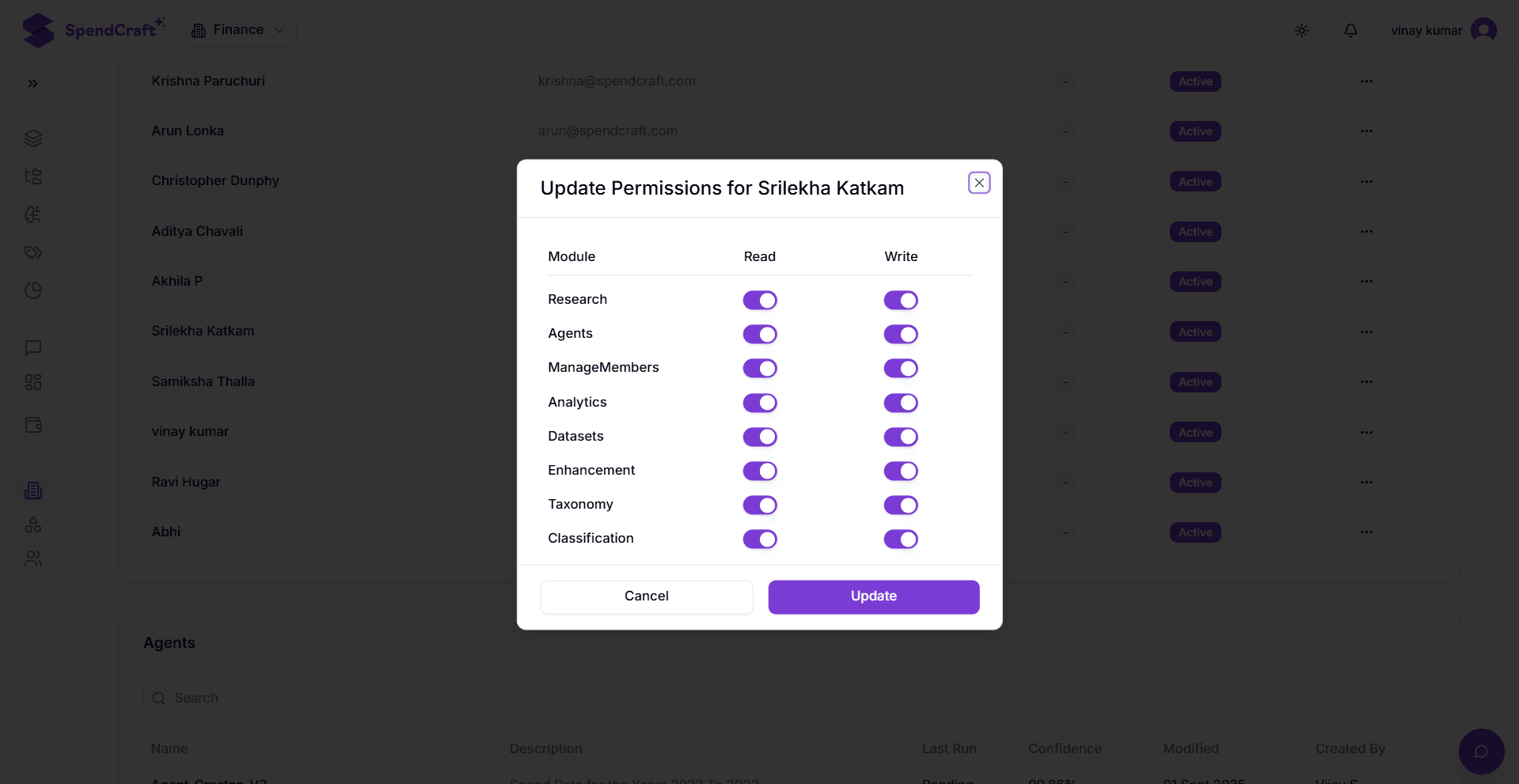
🔐 Permission Logic Overview
| Access Level | Capability | Typical User Profile |
|---|---|---|
| Read Only | Can view dashboards and classification results but cannot change rules or taxonomies. | Executives, Auditors, Stakeholders. |
| Read & Write | Can manage datasets, train Agents, and modify taxonomy structures. | Category Managers, Data Analysts. |
| None (Disabled) | The module will be hidden or inaccessible to the user within this specific workspace. | Users with restricted functional scopes. |
Best Practice
Apply the Principle of Least Privilege: Grant "Read" access to most stakeholders and restrict "Write" access to the core team responsible for data integrity and Agent training. This prevents accidental changes to stable classification models.