
Update Permissions for an Active Member
Updating permissions allows you to apply the principle of least privilege, ensuring users have access only to the specific modules required for their functional role within SpendCraft.
🔐 Steps to Adjust Access Rights
1. Locate User:
On the All tab within the Manage Team module, find the active user whose permissions need adjustment.
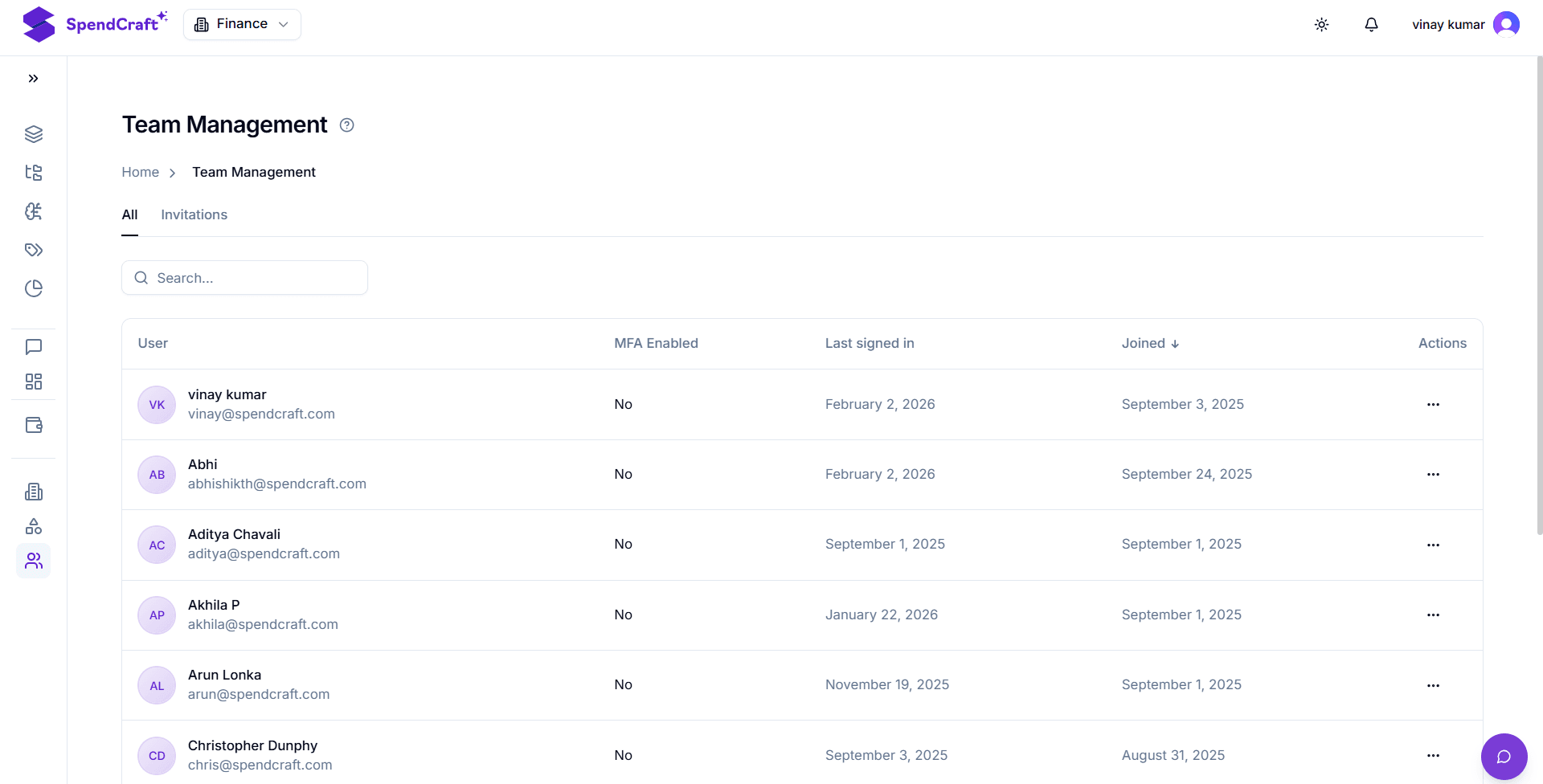
2. Access Actions:
Locate the user's row and click the ellipsis (...) in the Actions column on the far right.
3. Initiate Update:
Click Update from the dropdown menu to open the Manage Permissions modal.
4. Define Access Rights:
For each system module (e.g., Agents, Analytics, Datasets), configure the level of authority using the toggles:
- View (Read): Toggle this switch on if the user only needs to consume information—such as viewing reports in Analytics or checking a list of Datasets.
- Manage (Write): Toggle this switch on if the user needs to alter the environment—such as adding an Agent, deleting a Workspace, or updating another user's permissions in Manage Members.
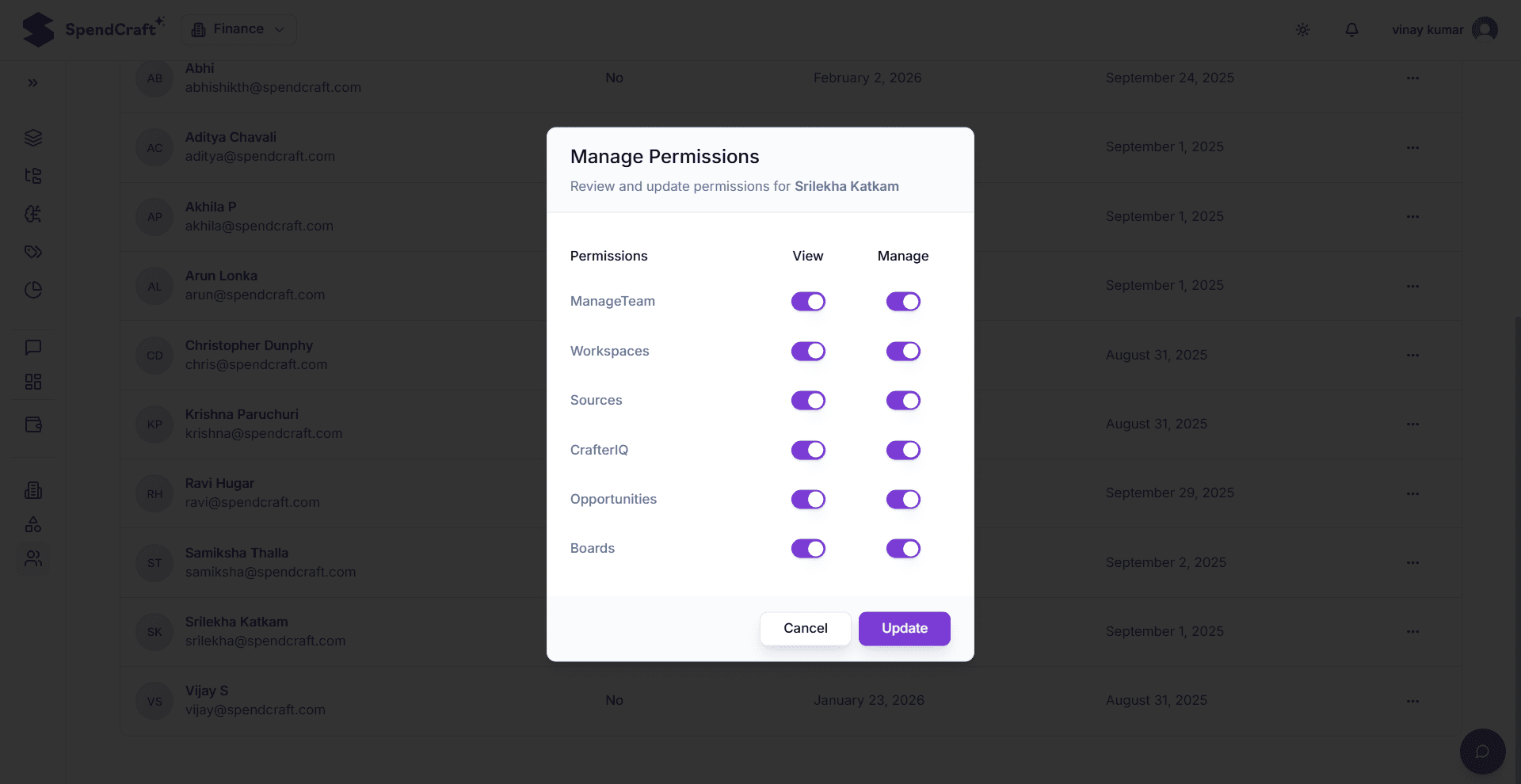
5. Save Changes:
Click the Update button. The new permission set is enforced immediately across the entire application.
🛡️ Permission Guidance
| Module | If "View" is Enabled | If "Manage" is Enabled |
|---|---|---|
| Analytics | Can see all dashboards and reports. | Can edit report metadata or export large datasets. |
| Agents | Can see existing AI classification models. | Can create, train, or delete Agents. |
| Taxonomy | Can browse the category hierarchy. | Can add, move, or rename category levels. |
Administrative Note
Remember that permissions set here in the Manage Team module act as a "Global Ceiling." If a user is denied Manage access here, they will not be able to manage that module in any Workspace, even if they are a Workspace Admin.
Next Step: Need to remove a user entirely? View the Delete member Guide.